
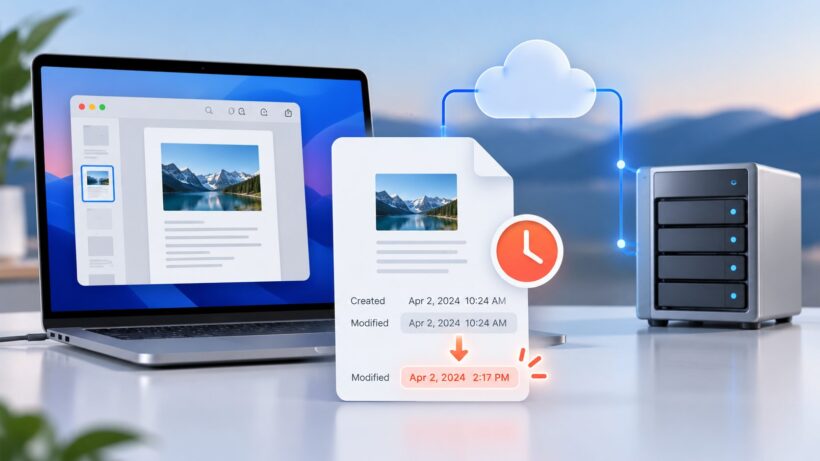
Opening a document from a WebDAV drive on macOS can sometimes change the file’s Date Modified even when the file was only viewed.
The issue has been reported with files opened from a copyparty WebDAV share, often through Preview. The user opens a PDF or another document, makes no visible changes, closes it, and later finds that its modification time has been replaced with a newer timestamp.
A matching copyparty issue was opened on September 29, 2026 as issue #1655. At the time of writing, the issue remains open and there is no confirmed upstream fix.
The behavior needs to be diagnosed carefully because several parts of macOS can be involved. Preview can save document state and versions, macOS has to translate local file operations into WebDAV requests, and the WebDAV server decides how those requests affect the underlying file.
The safest approach is to find out whether macOS is actually writing the file before changing server settings or trying to repair timestamps.
What should happen when a WebDAV file is opened
A normal file read should leave the file’s modification time alone.
WebDAV exposes a property called DAV:getlastmodified. RFC 4918 describes this value as a timestamp related to changes to the resource body. Changing a separate WebDAV property should not normally make the resource look as though its contents were modified.
A simple read usually involves requests such as:
PROPFIND
HEAD
GET
PROPFIND retrieves information about the resource. HEAD retrieves HTTP headers. GET reads the file.
None of these requests normally replaces the resource.
A write is different. If the client sends:
PUTthe server receives a new representation of the file. The server then has a valid reason to update its modification time.
This distinction is the first thing to check.
Preview can perform file operations when a document is opened
Apple’s Preview documentation gives one useful clue.
Preview supports macOS document versioning and automatic saving. Apple’s documentation says that Preview saves versions automatically and can save a version when a document is opened.
That does not mean Preview intentionally edits every PDF the user views. Local macOS files can carry application state, extended attributes, version information, and other metadata without producing an obvious content change.
WebDAV is more limited.
A file mounted through WebDAV looks like a normal filesystem object to a Mac application, but the server on the other side is working through HTTP and WebDAV methods. Some macOS filesystem operations do not map neatly to WebDAV properties.
This creates a possible chain of events:
Preview opens a document
        |
macOS performs document or metadata work
        |
the WebDAV filesystem translates the operation
        |
the server receives a write
        |
the file gets a new modification time
That sequence is plausible, but it should not be treated as confirmed until the server log shows what request macOS actually sent.
macOS has a history of storing Preview state in file metadata
Preview has previously stored information such as PDF viewing state in extended attributes.
Older macOS releases used attributes such as:
com.apple.Preview.UIstate.v1for some Preview-related state.
The exact attribute used by older Preview versions should not be assumed to apply unchanged to current macOS releases. The broader point still matters: opening a document can involve more filesystem activity than reading its bytes.
Copyparty has also received previous macOS reports involving extended attributes over WebDAV. One earlier issue showed Finder attempting to copy extended attributes to a WebDAV destination.
That issue is separate from the modification-time problem, but it confirms that Apple-specific metadata operations can reach the WebDAV layer.
Check which timestamp is changing
Linux and Unix-like systems usually track several timestamps for a file.
atime records access activity. Reading a file may update it.
mtime records modification of the file contents.
ctime records changes to filesystem metadata associated with the file.
Finder’s Date Modified and WebDAV’s getlastmodified are mainly relevant to mtime.
Run this on the copyparty server before opening the file:
stat "/path/to/document.pdf"Look for the Modify value.
Now open the document from the WebDAV drive on the Mac, close it, and run the same command again.
If only Access changes, the file was probably read normally.
If Change changes while Modify stays the same, some filesystem metadata may have changed.
If Modify changes, the file has been treated as modified by the server or underlying filesystem.
Check whether the file contents changed too
A new timestamp does not automatically mean the document bytes changed.
Calculate a SHA-256 hash before opening the file:
sha256sum "/path/to/document.pdf"Record the result.
Open the document on the Mac, close it without editing, then calculate the hash again:
sha256sum "/path/to/document.pdf"If the two hashes are identical, the final file contents are identical even though its timestamp changed.
If the hash is different, the file itself was rewritten with different content.
This test is useful because an application can theoretically rewrite a file with identical bytes. In that case the hash stays the same while mtime still changes.
Test the WebDAV mount without Preview
Preview should be removed from the test before blaming it.
Suppose the WebDAV share is mounted at:
/Volumes/filesRead the file from Terminal:
cat "/Volumes/files/document.pdf" >/dev/nullThen check its server-side timestamp again:
stat "/path/to/document.pdf"You can also read the file through a checksum operation:
shasum -a 256 "/Volumes/files/document.pdf"If these commands leave mtime unchanged, basic reads through the WebDAV mount are probably working normally.
Now open the same file with Preview:
open -a Preview "/Volumes/files/document.pdf"Close it without editing.
Check stat again.
A timestamp that changes only after the Preview test gives you a much narrower problem to investigate.
If even cat changes the modification time, Preview is probably not the main trigger. The issue would then be lower in the WebDAV stack or on the server.
Watch the copyparty log while opening the file
The server log can show whether the Mac is actually sending a write request.
For a systemd installation, use:
journalctl -f -u copypartyFor Docker:
docker logs -f copypartyStart the log, then open one test file from the Mac.
Requests such as these are expected during normal browsing:
PROPFIND
HEAD
GET
Pay closer attention if you see:
PUT
PROPPATCH
LOCK
UNLOCK
PUT is the most useful finding.
If opening a PDF in Preview causes a PUT, the server is receiving a real write operation. The new modification time then makes sense from the server’s point of view.
PROPPATCH means the client is attempting to change WebDAV properties. A property-only change should not normally be treated like a content modification under WebDAV semantics.
LOCK and UNLOCK can appear during editing workflows and do not prove by themselves that the document contents changed.
What the log results tell you
A GET with no write request, followed by an unexpected mtime change, points more strongly toward copyparty or the backing filesystem.
A PUT after opening the file points toward the macOS client path. Preview, Apple’s WebDAV filesystem code, or both may be involved.
A PROPPATCH with no PUT would be particularly useful to report because it suggests a metadata operation may be affecting the timestamp.
A changed SHA-256 hash proves that the document body changed.
An unchanged hash with a new mtime means the final contents are the same, but the resource was still touched or rewritten.
The safest fix for files that should only be viewed
If the WebDAV share contains documents that should not normally be edited, give the Mac user read-only access.
Copyparty supports separate permissions for users and volumes. A configuration can give one account read permission without giving it write or delete access.
For example:
[accounts]
  macreader: strong-password-here

[/documents]
  /srv/documents
  accs:
    r: macreader
The exact configuration should be checked against the copyparty version you are running, but the principle is simple. The account used by macOS should only have read permission.
Preview can still request a write if it wants to. The server refuses it.
For archives, scanned documents, PDFs, photos, ebooks, and other collections where timestamps matter, this is the cleanest protection.
Use a separate account when files need editing
Some WebDAV directories need to support real edits.
In that case, using separate viewer and editor accounts gives better control than making every mounted share writable.
A read-only account can be used for everyday browsing. A second account can be used when a file genuinely needs to be changed.
This reduces the chance that ordinary viewing alters historical timestamps or replaces files unintentionally.
Do not enable copyparty write options just to fix the timestamp
Copyparty has options related to WebDAV overwriting, including daw.
These options are useful when a client needs to replace existing files and the account has the required permissions.
They do not stop macOS from attempting writes.
If the problem turns out to be an unexpected PUT, making overwrite behavior more permissive can allow that request to succeed more easily.
Leave write-related options alone until the log shows what request is causing the timestamp change.
X-OC-MTime helps with uploads, not accidental writes
WebDAV does not have one universally supported method for uploading a file while setting any arbitrary modification time the client wants.
Some servers and clients use the X-OC-MTime extension.
Copyparty supports this behavior with compatible clients such as rclone. Its rclone documentation recommends using the ownCloud WebDAV vendor mode for timestamp support.
A compatible rclone configuration may contain:
[copyparty]
type = webdav
url = https://server.example.com/files/
vendor = owncloud
user = username
pass = <rclone-obscured-password>
This is useful when files are intentionally copied or synchronized and their original timestamps need to be preserved.
It does not fix a viewing application that should never have written the resource in the first place.
rclone can be tested as an alternative WebDAV client
Apple’s built-in WebDAV mount is not the only way to access a WebDAV server from macOS.
rclone can connect to copyparty and mount the remote filesystem.
Create the remote with:
rclone configThen test it:
rclone lsd copyparty:A mounted rclone remote can help determine whether the behavior is specific to Apple’s native WebDAV client.
There is one macOS warning that matters here.
Current rclone documentation warns that some FUSE-T behavior can make file access and modification times difficult to manage independently. Viewing files through Finder can then update modification times and may trigger uploads.
That can produce a symptom similar to the original problem.
Anyone testing rclone for timestamp preservation should therefore check the selected mount backend carefully and test with disposable files before moving an archive to it.
Quick Look is worth testing
Quick Look can display many files without opening them in Preview.
Select a document in Finder and press the Space bar.
After closing Quick Look, check the server-side timestamp:
stat "/path/to/document.pdf"If Quick Look leaves mtime unchanged while Preview changes it, Quick Look becomes a practical way to inspect files without launching Preview.
It is not guaranteed to work around every WebDAV issue because Finder and Apple’s WebDAV client are still part of the path.
Test it rather than assuming it is read-only.
Do not blame exFAT before testing the network path
Some reports involve copyparty data stored on exFAT.
That alone does not explain why a normal read would change a file’s content modification time.
Test the backing filesystem locally on the server:
stat "/path/to/file.pdf"
sha256sum "/path/to/file.pdf"
cat "/path/to/file.pdf" >/dev/null
stat "/path/to/file.pdf"
sha256sum "/path/to/file.pdf"
If a local read leaves the modification time and hash unchanged, then reproduce the same operation through the WebDAV mount.
A difference between the two tests points back toward the network client or WebDAV handling rather than the storage filesystem itself.
noatime is not a fix for a changed modification time
Some filesystem advice recommends mounting storage with noatime.
That setting controls access-time updates.
It does not normally prevent mtime from changing when a file is rewritten.
If Finder shows a changed Date Modified and Linux stat confirms that the Modify field changed, adjusting atime behavior will not address the real cause.
The same caution applies to disabling Spotlight or changing Finder settings. Those steps should come after a test proves that one of those components is involved.
Check the copyparty version before reporting the issue
The modification-time problem was reported to the copyparty project on September 29, 2026 as issue #1655.
Before adding logs or reproduction details to that issue, reproduce the behavior on the latest stable copyparty release available to you.
A useful bug report should include the macOS version, copyparty version, backing filesystem, WebDAV client, affected file type, request log, timestamp before and after the test, and SHA-256 hash before and after.
That information can show whether the file was rewritten, merely touched, or changed by the storage layer.
A clean test procedure
Use one disposable PDF and keep the test small.
- Run
statandsha256sumon the server and save both results. - Read the file through the WebDAV mount with
cat, then check the timestamp and hash again. - Preview it with Quick Look and repeat the checks.
- Open it in Preview without editing and repeat the checks.
- Keep the copyparty log running during each test and record any
PUT,PROPPATCH,LOCK, orUNLOCKrequests. - Repeat the Preview test with a read-only copyparty account.
The read-only account test is especially useful. If Preview opens the document normally while copyparty rejects a write request and the original mtime remains intact, you have a workable protection even before the upstream cause is fixed.
What I would use on a document archive
For a WebDAV share that mainly contains files for viewing, I would expose the collection to macOS through a read-only copyparty account.
That keeps the protection on the server, where Preview, Finder, and any other Mac application cannot bypass it.
A second writable account can handle intentional edits.
If the share must remain writable all the time, I would capture the copyparty request log first. A confirmed PUT or PROPPATCH gives you something concrete to troubleshoot and something useful to attach to copyparty issue #1655.
Until the upstream cause is confirmed, protecting the original files from unexpected writes is more reliable than trying to repair their timestamps afterward.

Sooraj Raj is a programmer, blogger and professional developer with an interest in technology research and publishing. He writes about technology developments and shares information in a clear, straightforward way.