

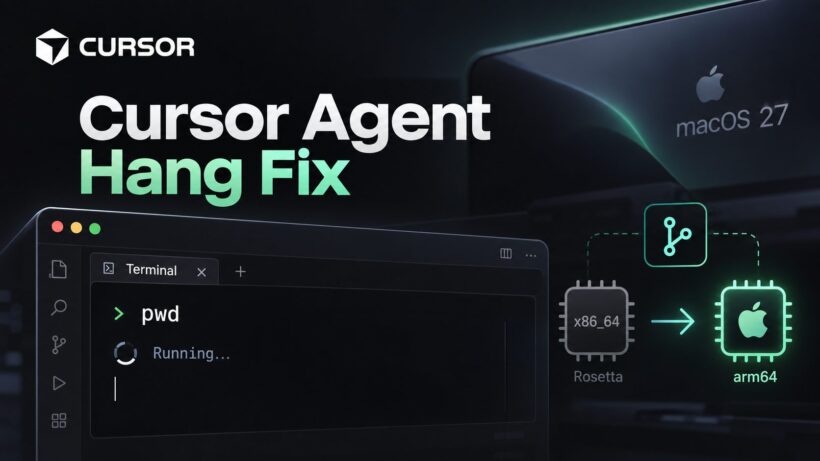
A macOS 27 upgrade can leave Cursor Agent unable to run terminal commands on some Apple silicon Macs. Even a command as basic as pwd may sit on “Running” with no output until you stop it manually.
Cursor investigated one of these reports and traced the failure to an old Intel-only Git executable on the Mac. The macOS upgrade had removed the Rosetta environment that the Git binary needed, while Cursor Agent was still finding that Git through the system PATH.
Apple documents the macOS change behind this problem. Rosetta is not automatically restored when a Mac is upgraded to macOS 27.0, even if Rosetta had been installed before the upgrade.
For affected Macs, there are two practical ways to restore Cursor Agent:
- Reinstall Rosetta so the existing Intel Git can run again.
- Replace or move the old Intel-only Git so Cursor finds a native Apple silicon-compatible Git instead.
Cursor has also developed a product-side fix intended to prevent an unusable Git executable from leaving Agent stuck.
Symptoms of the Cursor Agent problem
The reported problem appeared after upgrading an Apple silicon Mac to macOS 27.0.
Commands requested through Cursor Agent would stay in the “Running” state indefinitely. For example:
pwdor:
echo okThe commands produced no useful stdout or stderr, and the user had to stop them manually.
Related reports described Agent hanging during file operations such as search, Grep, and Read.
That makes the issue easy to misdiagnose. A user may start checking shell configuration, terminal permissions, extensions, project settings, or Cursor itself.
The Git executable on the Mac deserves an early check when the problem starts immediately after a macOS 27 upgrade.
The macOS 27 Rosetta change behind the problem
Apple states in its macOS 27 release notes that Rosetta is not automatically restored after upgrading to macOS 27.0.
Rosetta allows software containing Intel x86_64 instructions to run on Apple silicon Macs.
A Mac can therefore have this sequence of events:
- Rosetta was installed before the upgrade.
- An Intel-only command-line tool depended on Rosetta.
- The Mac was upgraded to macOS 27.
- Rosetta was no longer present after the upgrade.
- The old Intel executable remained on disk and stayed on the shell’s
PATH.
That last point explains why the problem can survive the macOS upgrade without producing an obvious warning.
The old program still exists. It simply cannot execute normally without the translation environment it previously used.
Apple documents the Rosetta behavior in its macOS 27 release notes and its Apple silicon support documentation.
Cursor traced the hang to an Intel-only Git executable
Cursor staff investigated the reported Agent hang and found an older Intel-only copy of Git on the affected Mac.
A common location for this type of installation is:
/usr/local/bin/gitCursor Agent was finding that Git through PATH.
Because the executable contained Intel x86_64 code and Rosetta was no longer available, Git could not run as expected. Cursor’s Agent execution path did not handle that condition correctly and could remain waiting.
The result was the misleading behavior where even an unrelated command such as:
pwdappeared to hang.
The original user confirmed that reinstalling Rosetta fixed the problem.
Cursor staff documented the diagnosis in the Cursor Community report about Agent terminal commands hanging after macOS 27.
Why Git can affect a simple command such as pwd
pwd does not require Git.
The problem occurs because Cursor Agent does more than pass a single command directly to a shell. Agent operates inside Cursor’s local tooling environment and can use project, repository, file, and terminal information while working.
Cursor’s own terminal documentation describes terminal execution as one of the tools available to Agent.
If the Agent execution path encounters a Git executable that it cannot successfully launch, the surrounding tool operation can stall. The command visible in the interface may therefore be pwd, even though the command itself is not responsible for the failure.
This distinction is useful during troubleshooting. Running:
pwdsuccessfully in Apple’s Terminal app does not prove that Cursor Agent’s execution environment is healthy.
Check which Git your Mac is using
Start by completely quitting Cursor.
Use:
Command + QThen open Terminal.
Check the Mac architecture
Run:
uname -mAn Apple silicon Mac normally returns:
arm64The specific issue covered here concerns an Intel-only executable being selected on an Apple silicon Mac.
Find the active Git executable
Run:
command -v gitPossible results include:
/usr/local/bin/git/usr/bin/gitor:
/opt/homebrew/bin/gitSeeing /usr/local/bin/git does not prove that Git is Intel-only. It does make the binary worth inspecting.
You can also list every Git executable found through the current PATH:
which -a gitFor example:
/usr/local/bin/git
/usr/bin/git
The first result is normally the executable selected when git is called.
Check whether Git is Intel-only
Run:
file -L "$(command -v git)"The -L option tells file to follow a symbolic link if the Git path points to one.
An Intel-only Git may produce output containing:
x86_64A native Apple silicon executable should contain:
arm64A Universal binary may include support for both architectures.
You should also test Git directly:
git --versionIf the selected Git is Intel-only and cannot run correctly after the macOS 27 upgrade, you have a strong match for the failure Cursor identified.
Why /usr/local/bin/git deserves attention on Apple silicon
Homebrew uses different default installation locations for Intel and Apple silicon Macs.
The official Homebrew prefixes are:
Intel:
/usr/local
and:
Apple silicon:
/opt/homebrew
A Mac that was migrated from an older machine, used Intel Homebrew under Rosetta, or retained an older development setup can therefore have Intel tools under /usr/local.
That history does not make every file under /usr/local obsolete. Check the actual executable before changing anything.
Homebrew documents these prefixes in its official FAQ.
Fix 1: Reinstall Rosetta
Reinstalling Rosetta is the quickest fix when you still need Intel software on the Mac.
Apple provides a command-line installation method:
softwareupdate --install-rosettaThe option contains two literal hyphens because that is the command syntax required by softwareupdate.
Follow the prompts shown by macOS.
After Rosetta finishes installing, fully quit Cursor and open it again.
Ask Agent to run:
pwdThen try:
echo okIn the original Cursor report, reinstalling Rosetta restored Agent execution.
This approach also allows other Intel-only software on the Mac to continue using Rosetta.
Fix 2: Move the old Intel Git out of the way
Reinstalling Rosetta keeps the old Intel Git working. Developers who no longer need that installation may prefer to use a native Git instead.
Check the file first:
ls -l /usr/local/bin/gitThen inspect its architecture:
file -L /usr/local/bin/gitIf it is confirmed to be the obsolete Intel-only Git that is taking priority over another usable Git installation, move it rather than deleting it immediately:
sudo mv /usr/local/bin/git /usr/local/bin/git.intel-backupNow clear the shell’s cached command location:
hash -rCheck Git again:
command -v gitThen:
file -L "$(command -v git)"Finally:
git --versionIf the selected Git has changed to /usr/bin/git or another native installation and works normally, reopen Cursor and test Agent.
Renaming the old file first makes the change easy to reverse if another part of your development environment still depends on it.
Native Homebrew Git is another option
Apple silicon Homebrew installs under:
/opt/homebrewIf you use Homebrew and want a Homebrew-managed Git, confirm that you are using the native Apple silicon installation rather than an older Intel Homebrew tree.
Check Homebrew with:
which brewA native installation will normally resolve under:
/opt/homebrew/bin/brewYou can then inspect the Git selected by your shell and make sure the native installation appears before any obsolete Intel copy in PATH.
There is little reason to keep an Intel-only Git as the preferred Git on an Apple silicon development machine unless another part of your setup specifically requires it.
Changing git.path in Cursor does not fix this Agent issue
Cursor has a Git path setting that can point Source Control to a specific Git executable.
For example:
"git.path": "/usr/bin/git"That setting may look like an obvious fix.
Cursor staff later clarified that git.path controls Source Control and does not change the Git lookup involved in this Agent failure.
For this problem, fixing the executable found through PATH, or restoring Rosetta so that executable can run, addresses the condition Cursor identified.
Changing git.path alone should not be treated as the fix for an Agent terminal that hangs on every command.
Test Cursor after making the change
Fully quit Cursor after reinstalling Rosetta or changing the Git installation.
Closing only the project window may leave existing Cursor processes running.
Use:
Cursor > Quit Cursoror:
Command + QOpen Cursor again and start with a basic Agent command:
Run pwdIf that completes, try:
Run echo okThen test an operation that touches the project, such as asking Agent to read a known file or search for a specific string.
If terminal execution and file tools begin responding again after the Rosetta or Git change, the symptoms match Cursor’s documented macOS 27 issue.
If Git already shows arm64
Rosetta should not be treated as a universal fix for every Cursor hang on macOS 27.
If this command:
file -L "$(command -v git)"already reports an arm64 executable, the specific Intel-Git failure described by Cursor is less likely.
Collect the basic environment information before changing more settings:
sw_versuname -mcommand -v gitwhich -a gitfile -L "$(command -v git)"git --versionAlso record the installed Cursor version.
Those details help separate this issue from other terminal, extension host, shell, project, or Agent problems.
Cursor’s terminal documentation also notes that some shell prompt configurations can interfere with terminal output. That is a separate problem and should be investigated only when the Git and Rosetta checks do not match this macOS 27 failure.
Cursor has prepared a product-side fix
Cursor staff said the underlying handling problem has been fixed for Cursor 3.23.
The planned behavior is to prevent Agent from remaining stuck when the Git executable it discovers cannot run. Cursor has also discussed falling back to a compatible Git rather than leaving the Agent operation waiting indefinitely.
There is a release-status detail worth keeping accurate.
As of October 1, 2026, Cursor’s public changelog does not show a generally published 3.23 changelog entry. Cursor staff have described the fix as landed and intended for 3.23, so users should check their installed version rather than assume the fix is already present.
Cursor’s current releases can be checked on the official Cursor changelog.
macOS 27 is a good time to check old Intel developer tools
Apple’s Rosetta documentation adds some longer-term context.
Apple says macOS 27 is the final major macOS release with Rosetta available as a general-purpose translation environment. Rosetta support becomes more limited after macOS 27.
An old Intel-only Git is therefore worth replacing even if reinstalling Rosetta fixes Cursor today.
The same check can be useful for other command-line programs carried over from older Intel setups.
You can inspect a suspicious executable with:
file -L /path/to/executableAn Apple silicon development environment will be easier to maintain when regularly used command-line tools are native arm64 or Universal builds.
A short diagnostic sequence
If Cursor Agent stopped running commands immediately after a macOS 27 upgrade, these checks cover the confirmed failure path:
uname -m
command -v git
which -a git
file -L "$(command -v git)"
git --version
On an Apple silicon Mac, pay attention when the selected Git is an x86_64 executable.
Reinstall Rosetta if you still need that Intel software:
softwareupdate --install-rosettaOr move the obsolete Git out of the preferred PATH location and use a native Git instead.
Then quit Cursor completely, reopen it, and test Agent again.

Sooraj Raj is a programmer, blogger and professional developer with an interest in technology research and publishing. He writes about technology developments and shares information in a clear, straightforward way.