


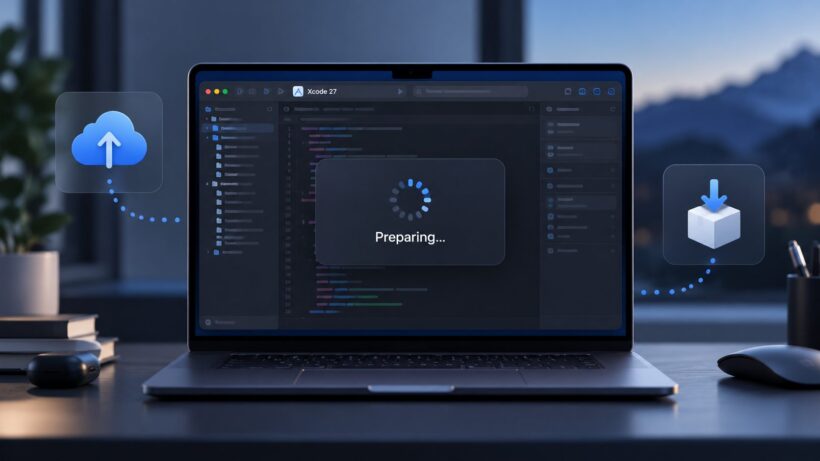
Xcode 27 users have reported two cases where development work stops at a “Preparing” message with no useful error.
One happens while uploading an archived iOS app to App Store Connect. Xcode reaches “Preparing to upload” and stays there indefinitely.
The other happens when Xcode tries to install components such as Metal Toolchain 27. The Components screen remains at “Preparing to download,” and the equivalent xcodebuild command can stall as well.
The wording looks similar, but the available evidence points to separate parts of Xcode. The App Store upload problem has been traced to an old Intel-only developer utility on affected Macs. The component download problem has several possible triggers, including network restrictions and persistent local component state.
This guide covers what has been confirmed, what is still uncertain, and which fixes are worth trying first.
Updated: September 26, 2026
Xcode 27 hangs at “Preparing to upload”
The App Store problem normally appears after the application has already been archived successfully.
Signing may complete without an error. App Store Connect authentication can succeed. Xcode can create the IPA. The failure starts later, when Organizer begins preparing the package for validation or upload.
One developer reported the issue after moving to Xcode 27 and macOS 27. The same behavior appeared with unrelated applications and even with a newly created project.
That matters because it makes an app-specific code problem much less likely.
Another developer investigating a matching problem found that even an archive that had previously passed Apple’s validation could no longer complete validation on the affected Mac.
The common symptom was simple:
Preparing to upload [App].ipaThe process stayed there until it was cancelled.
What happens before Xcode uploads the IPA
Xcode does more local work after creating an archive and before sending the package to App Store Connect.
The reported failure involved Apple’s ContentDelivery framework and a helper called swinfo.
During its package inspection work, swinfo can call developer utilities used to inspect binaries and debugging information.
One of the utilities involved in the reported case was:
dwarfdump-classicThe affected Mac contained an old copy here:
/Library/Developer/CommandLineTools/usr/bin/dwarfdump-classicThat file belonged to an old standalone Command Line Tools installation.
On the affected Apple silicon system, the old binary supported Intel x86_64 only. Rosetta was not installed.
When the package preparation process attempted to run the old Intel executable, macOS could not execute it normally. The lower-level process failed, while Xcode continued displaying the Preparing screen instead of giving the developer a useful error.
Developer logs connected to the investigation included a “Bad CPU type in executable” failure.
Apple Developer Technical Support later responded to the Developer Forums investigation and asked for a bug report to be filed.
Check the developer directory first
Run:
xcode-select --print-pathA standard full Xcode installation will normally return:
/Applications/Xcode.app/Contents/DeveloperIf you see:
/Library/Developer/CommandLineToolsthe standalone Command Line Tools installation is currently selected.
Set the active developer directory to Xcode with:
sudo xcode-select --switch /Applications/Xcode.app/Contents/DeveloperCheck it again:
xcode-select --print-pathYou should now see:
/Applications/Xcode.app/Contents/DeveloperThis change alone may be enough if the wrong developer directory was selected.
Check for an old dwarfdump-classic
The next test is specific to the failure found in the Xcode 27 upload reports.
Run:
ls -l /Library/Developer/CommandLineTools/usr/bin/dwarfdump-classicIf the file exists, inspect the binary:
file /Library/Developer/CommandLineTools/usr/bin/dwarfdump-classicA suspicious result on an Apple silicon Mac is a binary that reports only:
x86_64A Universal binary or current ARM-compatible developer tool does not match the failure that was documented in the affected systems.
You can also inspect the installed Command Line Tools package:
pkgutil --pkg-info=com.apple.pkg.CLTools_ExecutablesApple recommends keeping the standalone Command Line Tools installation compatible with the installed macOS release. Old versions can remain on a Mac after operating system and Xcode upgrades.
Remove an obsolete Command Line Tools installation
A full installation of Xcode already includes its own command-line developer tools.
If /Library/Developer/CommandLineTools contains an old standalone package that you no longer need, Apple documents its removal with:
sudo rm -rf /Library/Developer/CommandLineToolsThen select Xcode again:
sudo xcode-select --switch /Applications/Xcode.app/Contents/DeveloperVerify the result:
xcode-select --print-pathThe output should be:
/Applications/Xcode.app/Contents/DeveloperQuit and reopen Xcode after making the change.
Open the archive in Organizer and use Validate App before trying another upload. Validation reaches much of the same package inspection path and gives you a quicker way to see whether the local problem has been fixed.
The developer behind the Stack Overflow report confirmed that removing the stale Command Line Tools installation and restoring the developer environment fixed the upload problem.
Reinstall Command Line Tools if you need them
Developers who rely on the standalone Command Line Tools package can install a current version after removing the old files.
Run:
xcode-select --installmacOS should offer the version available for the current system.
After installation, developers using full Xcode can point xcode-select back to Xcode:
sudo xcode-select --switch /Applications/Xcode.app/Contents/DeveloperConfirm it with:
xcode-select --print-pathKeeping a years-old Command Line Tools directory beside a current Xcode installation can make problems like this difficult to identify because the old files are outside the Xcode application bundle.
Rosetta can also make the old binary run
Rosetta is another confirmed workaround for the Intel-only binary case.
On an Apple silicon Mac, it can be installed with:
softwareupdate --install-rosettaFollow the license prompt if macOS displays one.
In the Developer Forums investigation, validation started working after Rosetta was installed because the Intel-only utility could run again.
This can be useful when an existing development setup still depends on Intel tools.
For a Mac where dwarfdump-classic exists only because an obsolete Command Line Tools package was left behind, replacing the old tools removes the dependency instead.
Reinstalling Xcode can leave the problem untouched
Xcode normally lives here:
/Applications/Xcode.appThe standalone Command Line Tools package lives elsewhere:
/Library/Developer/CommandLineToolsRemoving and downloading Xcode again does not automatically remove that second directory.
An old dwarfdump-classic can therefore survive an Xcode reinstall.
This explains why developers can install a clean copy of Xcode, create another archive, and see the same Preparing screen again.
Before downloading Xcode again, inspect /Library/Developer/CommandLineTools.
Certificates are unlikely to be the cause in this case
Signing problems normally produce errors during signing, provisioning, export, authentication, or validation.
The reported Xcode 27 failure occurred later in the workflow and reproduced with unrelated projects. A previously accepted archive could also fail during another validation attempt on the affected Mac.
Replacing distribution certificates is therefore a poor first step when your symptoms match this specific Preparing problem.
Certificate troubleshooting still makes sense when Xcode reports an actual signing or provisioning error.
Transporter may hang too
Apple Transporter can upload application packages to App Store Connect, but it may not bypass this particular local failure.
The Developer Forums investigation reported similar package preparation behavior in Transporter.
That result fits the suspected cause. If both tools depend on local package inspection code or developer utilities before delivery, replacing the upload interface does not repair the local developer environment.
A cloud build and delivery process does not use the stale tools installed on your Mac, which also explains why the same project can work in a separate build environment.
Metal Toolchain 27 stuck at “Preparing to download”
The second issue appears in:
Xcode > Settings > ComponentsMetal Toolchain 27 may remain at:
Preparing to downloadRunning the command-line equivalent can produce the same result:
xcodebuild -downloadComponent metalToolchainDevelopers have reported the command reaching the asset download stage and then making no visible progress.
Restarting macOS and reinstalling Xcode did not fix the Stack Overflow case reported on September 24.
The developer was able to locate the underlying MobileAsset information and manually download the referenced asset from Apple’s CDN.
That test confirms access to the final file endpoint. Xcode still performs other work around component discovery, asset selection, network policy, verification, import, and registration.
A successful manual HTTP download does not test all of those stages.
Select the correct Xcode installation
Start with:
sudo xcode-select --switch /Applications/Xcode.app/Contents/DeveloperConfirm the path:
xcode-select --print-pathCheck which Xcode version the command line is using:
xcodebuild -versionThis avoids troubleshooting one Xcode installation while xcodebuild points to another.
Developers who keep beta, RC, or older Xcode versions on the same Mac should check this before doing anything else.
Ask Xcode to check for newer components
Apple provides an xcodebuild option for checking available components:
xcodebuild -runFirstLaunch -checkForNewerComponentsAllow the command to finish, then reopen:
Xcode > Settings > ComponentsTry the Metal Toolchain download again.
Xcode uses the following user directory for downloaded component packages during supported component workflows:
~/Library/Developer/Packages/Seeing activity there can help confirm whether a download has progressed beyond the preparation stage.
Try the Metal Toolchain download from Terminal
Run:
xcodebuild -downloadComponent metalToolchainTerminal can sometimes expose progress or an error that Xcode’s Components window does not show clearly.
If it completes, return to Xcode and check whether Metal Toolchain is now installed.
Download the component to a separate path
Apple also supports exporting an Xcode component instead of installing it immediately.
For Metal Toolchain, run:
xcodebuild -downloadComponent metalToolchain -exportPath ~/DownloadsIf the download succeeds, import the downloaded component with:
xcodebuild -importComponent metalToolchain ~/Downloads/metalToolchain.dmgUse the actual file path if the exported DMG has a different filename.
This route stays inside Xcode’s documented component system. It is preferable to manually constructing a CDN URL from MobileAsset metadata.
Check Low Data Mode
Open:
System Settings > Wi-Fi > DetailsCheck whether Low Data Mode is enabled for the active network.
Temporarily disable it and retry the download.
Apple describes Low Data Mode as a setting that reduces network data use. Apple’s networking APIs also allow software to identify a network connection as constrained.
Apple has not published documentation stating that Low Data Mode specifically causes Metal Toolchain 27 to remain at Preparing.
Developer reports make it worth checking. Xcode users have reported simulator and component downloads starting normally after Low Data Mode was disabled.
Treat this as a diagnostic step rather than a confirmed universal fix.
Test another network
A separate Apple Developer Forums discussion documents an Xcode download problem that changed when the developer moved away from a phone hotspot.
The GUI remained stuck, and a command such as:
xcodebuild -downloadPlatform iOSalso failed to proceed normally.
The download worked after the Mac was moved to another Wi-Fi connection.
For an affected Mac, test a normal Wi-Fi or Ethernet connection before reinstalling Xcode.
VPN software, web filtering, DNS filtering, HTTP proxies, endpoint security software, and other network controls can also be temporarily removed from the test path.
A working browser download still does not prove that every request used by Xcode’s component service is reaching Apple correctly.
A clean macOS user account can narrow it down
One Xcode 27 Developer Forums report gives another useful diagnostic.
The developer had trouble downloading Xcode components. A macOS reinstall followed by restoring the previous environment from Time Machine caused the problem to return.
A later installation using a minimally restored account allowed Xcode to download Developer Documentation and Metal Toolchain normally.
The report did not identify one specific preference or cache file as the cause.
That means deleting random Xcode folders would be guesswork.
A safer test is to create a temporary macOS user account and try the download there.
Log in to the temporary account, launch Xcode, confirm the selected developer directory, and open:
Xcode > Settings > ComponentsTry downloading Metal Toolchain.
A successful download in the temporary account points toward user-specific state in the normal account. Failure in both accounts pushes the investigation toward system-wide configuration, Xcode itself, or the network path.
The temporary account is a diagnostic tool. There is no need to migrate your normal development account just to perform this test.
Avoid deleting /System/Library/AssetsV2
The Metal Toolchain report references MobileAsset information stored below:
/System/Library/AssetsV2/This directory belongs to macOS system asset management.
Finding the Metal Toolchain manifest there does not establish that deleting MobileAsset files is a supported fix.
There is currently no Apple troubleshooting procedure telling developers to erase arbitrary content under /System/Library/AssetsV2 for this Xcode 27 problem.
Manual deletion could leave other managed assets in an inconsistent state.
Use xcodebuild component commands and normal network tests before considering undocumented filesystem changes.
Which fix should you try?
For an App Store upload that remains at “Preparing to upload,” check the developer toolchain first.
Run:
xcode-select --print-pathThen check the suspicious utility:
file /Library/Developer/CommandLineTools/usr/bin/dwarfdump-classicIf the standalone Command Line Tools installation is old, replace or remove it. Installing Rosetta is another option when Intel developer software is still required.
For Metal Toolchain or another Xcode component that remains at “Preparing to download,” begin with the supported component path:
sudo xcode-select --switch /Applications/Xcode.app/Contents/DeveloperThen:
xcodebuild -runFirstLaunch -checkForNewerComponentsTry:
xcodebuild -downloadComponent metalToolchainIf needed:
xcodebuild -downloadComponent metalToolchain -exportPath ~/DownloadsCheck Low Data Mode and test another network before reinstalling Xcode. A temporary macOS user account can then tell you whether the problem follows your normal user environment.
Why these two “Preparing” problems need separate troubleshooting
The App Store upload case has a specific reproduced failure involving package inspection and an obsolete Intel-only developer utility.
The Metal Toolchain case occurs inside Xcode’s component acquisition system. Reports point to more than one possible condition, and Apple has not documented one root cause that explains every affected Mac.
Applying the dwarfdump-classic fix to a component download problem without finding the same evidence would be guesswork. Deleting MobileAsset data to fix an App Store upload problem would be equally unsupported.
The message on screen is only the visible symptom. Logs, command-line tests, developer directory selection, binary architecture, and network behavior tell you which path is actually failing.
If I were troubleshooting a production Mac, I would start with the checks above before deleting Xcode or reinstalling macOS. They take less time, preserve the existing development setup, and target the parts of the Xcode 27 workflow that have actually been linked to these failures.

Sooraj Raj is a programmer, blogger and professional developer with an interest in technology research and publishing. He writes about technology developments and shares information in a clear, straightforward way.